
What is Inline Vault Encryption? A Guide to Using ansible-vault encrypt_string
Nov 01, 2025
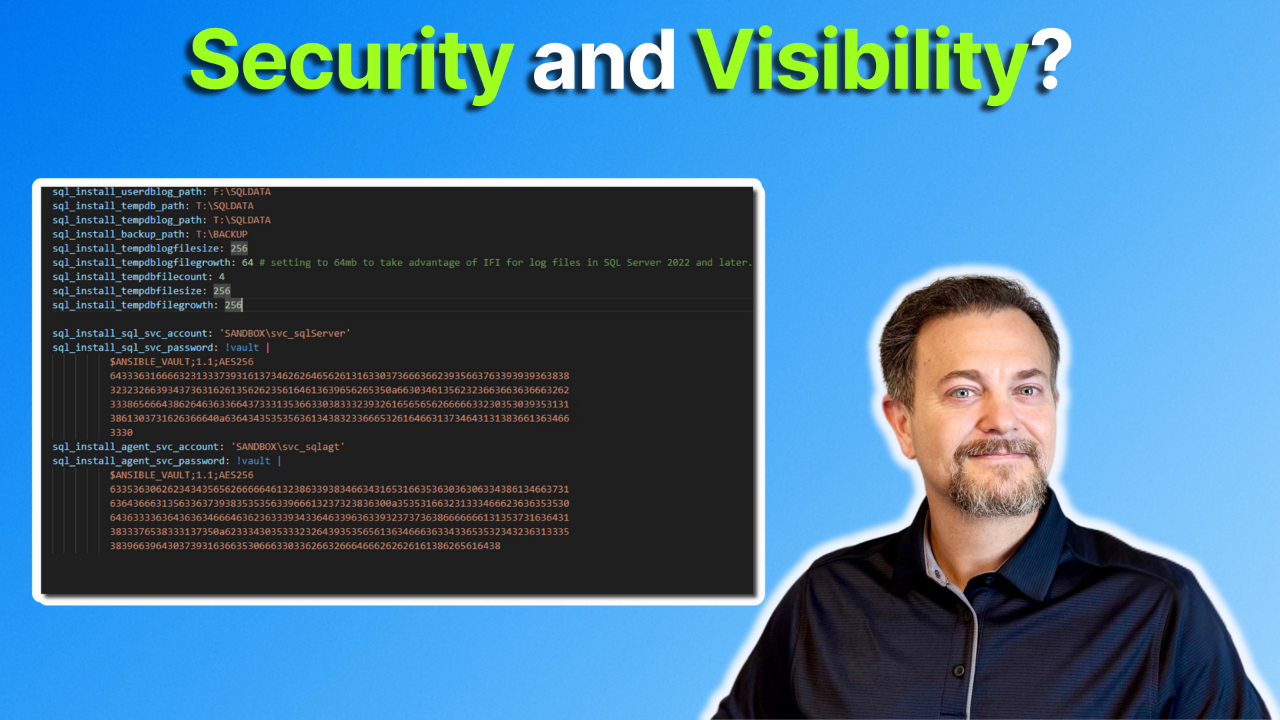
In our last post, you learned how to create a fully encrypted file with ansible-vault create. This is the perfect solution for grouping a set of related secrets, like all the credentials for a new SQL Server build.
But what happens when you don't need to lock down an entire file?
Sometimes, you have a large configuration file with dozens of settings that are not sensitive. Think tempdb data and log file paths, edition to install, and which features of SQL Server to install. Hiding all that information inside an encrypted vault would be counterproductive, especially when you need to collaborate with other teams who need to see that configuration. You need a way to perform a more granular level of encryption—to protect just a small subset of the values while leaving the rest of the file in plain text.
Today, you'll learn how to do exactly that with ansible-vault encrypt_string.
Scenario: A Shared Variable File
We'll use a common example of creating a new environment for a dev team. This involves installing SQL Server 2025 Developer Edition on 4 new servers to support a new flagship product. You're using the automatesql.mssql.sql_install role for this deployment, and have defined a common set of variables to be used.
It may look something like this in a file named sqlservers.yml:
# The method to install PowerShell modules. Can be 'gallery' from PowerShell Gallery or 'local' from a local path on the Ansible controller.
manage_powershell_modules_install_method: 'local'

# If 'manage_powershell_modules_install_method' is set to 'local', specify the path on the Ansible controller where the module files are located.
# Example: '/path/to/your/modules'
manage_powershell_modules_local_path: '/home/lcampbell/'

# A temporary folder used for staging the modules before installation.
manage_powershell_modules_temp_folder: 'C:\temp\modules'

sql_install_edition: "Enterprise Developer"
sql_install_issvcaccount: NT Service\MsDtsServer170
sql_install_features: SQLENGINE,REPLICATION,FULLTEXT,IS
sql_install_instance_name: MSSQLSERVER
sql_install_installshareddir: C:\Program Files\Microsoft SQL Server
sql_install_installsharedwowdir: C:\Program Files (x86)\Microsoft SQL Server
sql_install_sqlcollation: SQL_Latin1_General_CP1_CI_AS
sql_install_installdb_path: "E:"
sql_install_instance_dir: C:\Program Files\Microsoft SQL Server
sql_install_userdb_path: E:\SQLDATA
sql_install_userdblog_path: F:\SQLDATA
sql_install_tempdb_path: T:\SQLDATA
sql_install_tempdblog_path: T:\SQLDATA
sql_install_backup_path: T:\BACKUP
sql_install_tempdblogfilesize: 256
sql_install_tempdblogfilegrowth: 64 # setting to 64mb to take advantage of IFI for log files in SQL Server 2022 and later.
sql_install_tempdbfilecount: 4
sql_install_tempdbfilesize: 256
sql_install_tempdbfilegrowth: 256

sql_install_sql_svc_account: 'SANDBOX\svc_sqlServer'
sql_install_sql_svc_password: "MyPassword123" <-- THIS IS A PROBLEM
sql_install_agent_svc_account: 'SANDBOX\svc_sqlagt'
sql_install_agent_svc_password: "MyOtherPassword123" <-- THIS IS A PROBLEM
Most of this file is harmless configuration settings. But those *_svc_password values are a major problem. Checking this file into source control as-is would expose a credential. However, using ansible-vault create to encrypt the entire file would mean DBAs couldn't easily view or edit the remaining variables. We need a better way.
Visibility and Security
With ansible-vault encrypt_string, you get the best of both worlds. The command allows you to encrypt a single string and then paste that encrypted block right into your plain-text YAML file.
The sqlservers.yml file remains readable for everyone, promoting transparency and easy collaboration. But the sensitive service account passwords are transformed into an unreadable, encrypted block of text using AES-256 encryption. It can be safely checked into source control, and only Ansible, armed with the vault password, can decrypt it at runtime.
Inline Encryption in 4 Steps
Let's walk through the process.
Step 1: Create Your Plain-Text Variable File
First, create the sqlservers.yml file from the scenario above and save it in your project directory.
Step 2: Encrypt Your Secret Strings
Now, on the command line, we'll use ansible-vault encrypt_string. This command prompts you for the string you want to encrypt, asks for a vault password, and then outputs the encrypted block.
Run the following command:
ansible-vault encrypt_string --stdin-name 'sql_install_sql_svc_password'- --stdin-name 'sql_install_sql_svc_password' tells Ansible to create a YAML variable with this name.
The command will first prompt you for the vault password you want to use. You can use the same password from our last post or create a new one.

Now, type the password you want to encrypt (MyPassword123) and then press Ctrl+D to finish. Ansible will output the encrypted block:
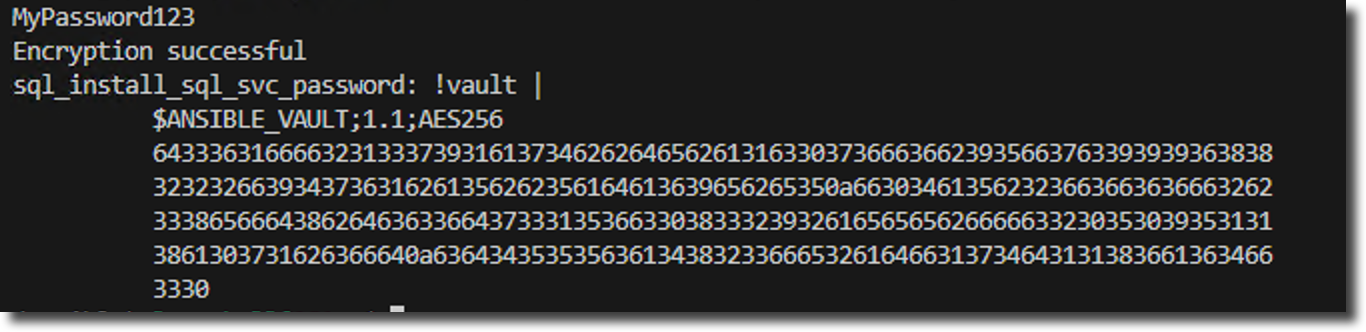
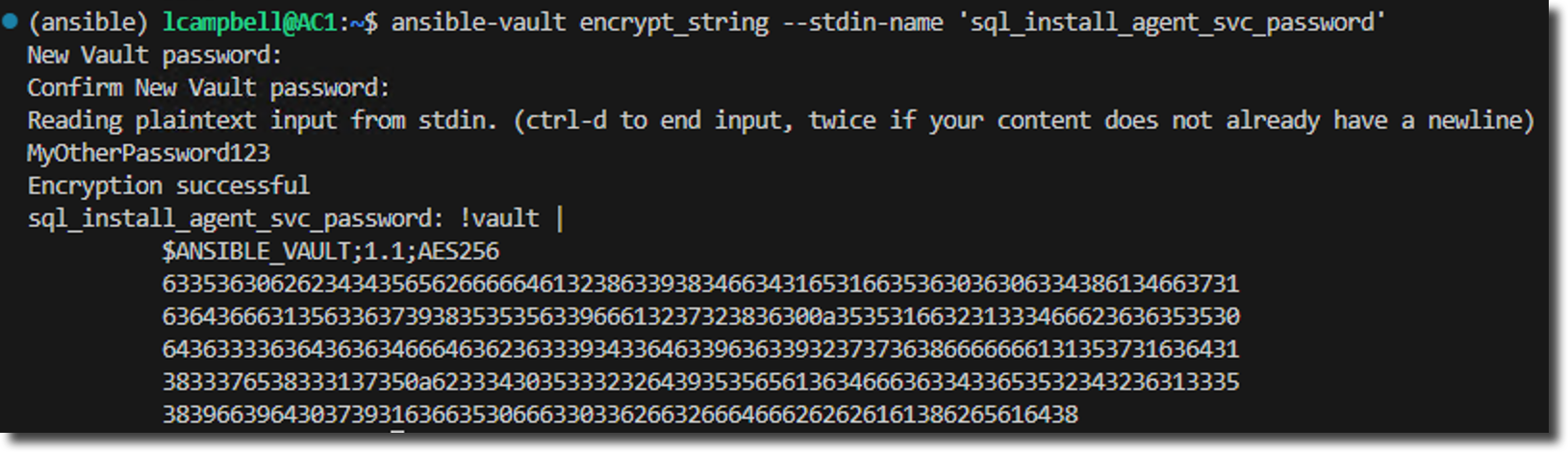
Repeat this step for any additional passwords you need to encrypt (e.g., MyOtherPassword123). Use the same vault password for each variable.
Step 3: Update Your YAML File
Copy the entire output, from sql_install_svc_password: and sql_install_agent_svc_password:, all the way to the last character. Go back into your sqlservers.yml file and replace the plain-text password lines with these new, encrypted blocks.
Your file should now look like this:
# The method to install PowerShell modules. Can be 'gallery' from PowerShell Gallery or 'local' from a local path on the Ansible controller.
manage_powershell_modules_install_method: 'local'

# If 'manage_powershell_modules_install_method' is set to 'local', specify the path on the Ansible controller where the module files are located.
# Example: '/path/to/your/modules'
manage_powershell_modules_local_path: '/home/lcampbell/'

# A temporary folder used for staging the modules before installation.
manage_powershell_modules_temp_folder: 'C:\temp\modules'

sql_install_edition: "Enterprise Developer"
sql_install_issvcaccount: NT Service\MsDtsServer170
sql_install_features: SQLENGINE,REPLICATION,FULLTEXT,IS
sql_install_instance_name: MSSQLSERVER
sql_install_installshareddir: C:\Program Files\Microsoft SQL Server
sql_install_installsharedwowdir: C:\Program Files (x86)\Microsoft SQL Server
sql_install_sqlcollation: SQL_Latin1_General_CP1_CI_AS
sql_install_installdb_path: "E:"
sql_install_instance_dir: C:\Program Files\Microsoft SQL Server
sql_install_userdb_path: E:\SQLDATA
sql_install_userdblog_path: F:\SQLDATA
sql_install_tempdb_path: T:\SQLDATA
sql_install_tempdblog_path: T:\SQLDATA
sql_install_backup_path: T:\BACKUP
sql_install_tempdblogfilesize: 256
sql_install_tempdblogfilegrowth: 64 # setting to 64mb to take advantage of IFI for log files in SQL Server 2022 and later.
sql_install_tempdbfilecount: 4
sql_install_tempdbfilesize: 256
sql_install_tempdbfilegrowth: 256

sql_install_sql_svc_account: 'SANDBOX\svc_sqlServer'
sql_install_sql_svc_password: !vault |
          $ANSIBLE_VAULT;1.1;AES256
          64333631666632313337393161373462626465626131633037366636623935663763393939363838
          3232326639343736316261356262356164613639656265350a663034613562323663663636663262
          33386566643862646363366437333135366330383332393261656565626666633230353039353131
          3861303731626366640a636434353535636134383233666532616466313734643131383661363466
          3330
sql_install_agent_svc_account: 'SANDBOX\svc_sqlagt'
sql_install_agent_svc_password: !vault |
          $ANSIBLE_VAULT;1.1;AES256
          63353630626234343565626666646132386339383466343165316635363036306334386134663731
          6364366631356336373938353535633966613237323836300a353531663231333466623636353530
          64363333636436363466646362363339343364633963633932373736386666666131353731636431
          3833376538333137350a623334303533323264393535656136346663633433653532343236313335
          38396639643037393163663530666330336266326664666262626161386265616438
Step 4: Use the Variable in a Playbook
Using these variables is identical to using a variable from a fully vaulted file. Create a new playbook, test_inline_vault.yml, and again, use no_log: true on any task that handles the secret.
---
- name: Test an inline vaulted variable
  hosts: localhost
  gather_facts: false
  vars_files:
    - sqlservers.yml

  tasks:
    - name: "Display a NON-SECRET variable from the same file"
      ansible.builtin.debug:
        msg: "The SQL Server Instance Name is {{ sql_install_instance_name }}"

    - name: "SECURE: Using a secret variable with no_log"
      # This is the correct way. The task uses the password, but 'no_log: true'
      # prevents any output, ensuring the secret is never exposed.
      ansible.builtin.debug:
        msg: "The SQL Server SVC Account password is {{ sql_install_sql_svc_password }}"
      no_log: true
Run it with the --ask-vault-pass, and provide the password you used in step 2.
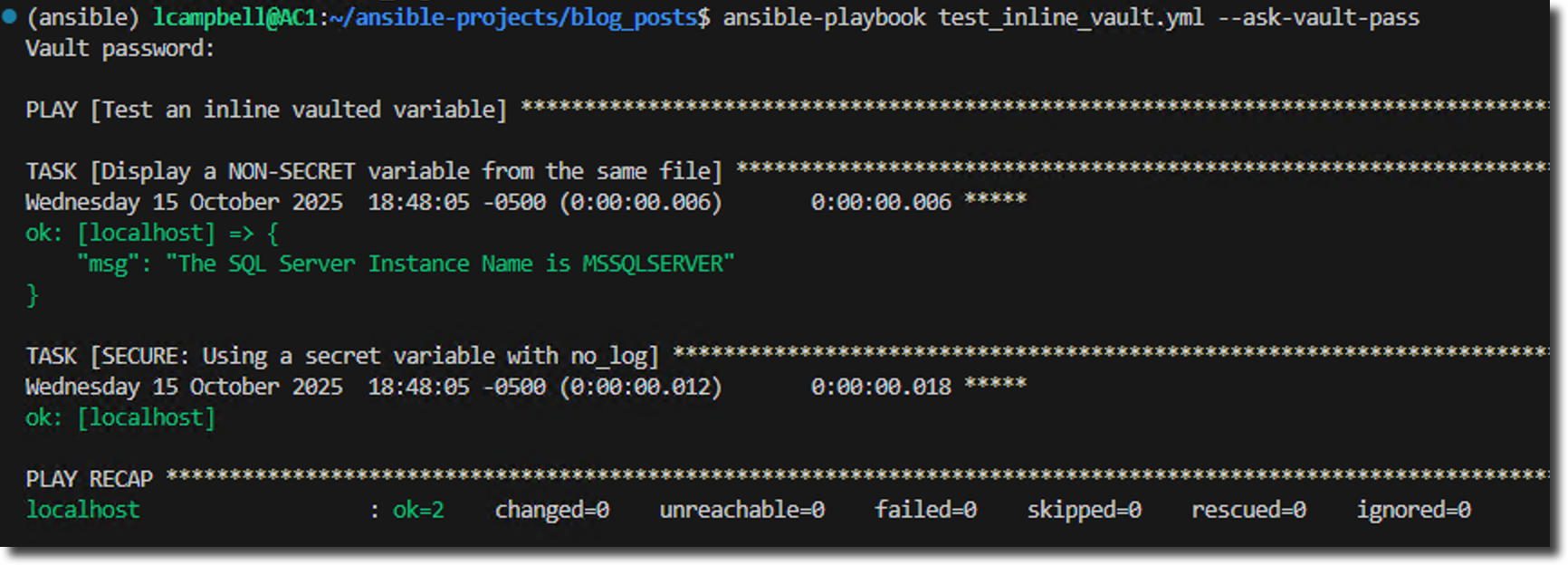
This output is exactly what we wanted.
Ansible successfully reads and displays the plain-text variables, while the task using the vaulted password runs successfully, but conceals its output. You have achieved both visibility and security in the same file.
Conclusion:
Ansible Vault is not only powerful but flexible as well. You can protect entire files or encrypt single strings with granular precision, providing the flexibility to secure your automation in almost any scenario.
But what about true, hands-off automation?
Constantly typing in a vault password isn't practical for scheduled tasks or CI/CD pipelines.
In our next post, we'll solve that by learning how to use a vault password file.
See you next week!
The Database Platform Automation Roadmap
Move from checklists and scattered scripts to desired-state Ansible playbooks—so you can stop wondering whether production still matches what you built. Includes the 60-second self-audit and 23-page field guide (PDF).